This is the second post with the technical details covering the ‘how’ https://chrismvnro.com/using-to-discuss-tags-in-azure-devops-to-run-better-stakeholder-workshops-part-1/
There are two parts – working in ADO with a tag, and creating the query, then creating a Power Automate flow to generate the email digest.
Azure Devops Board Query
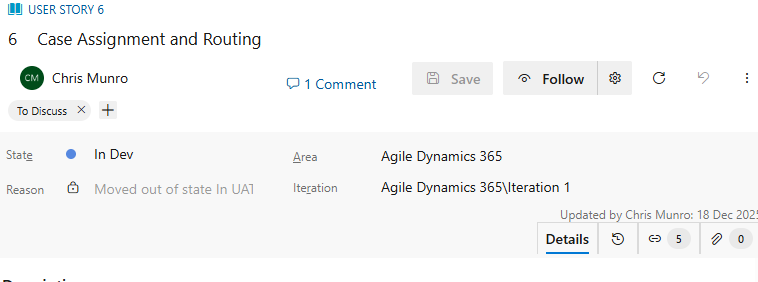
Create a new tag ‘To Discuss’ which you will use to identify the stories you will need to raise and discuss in the workshop
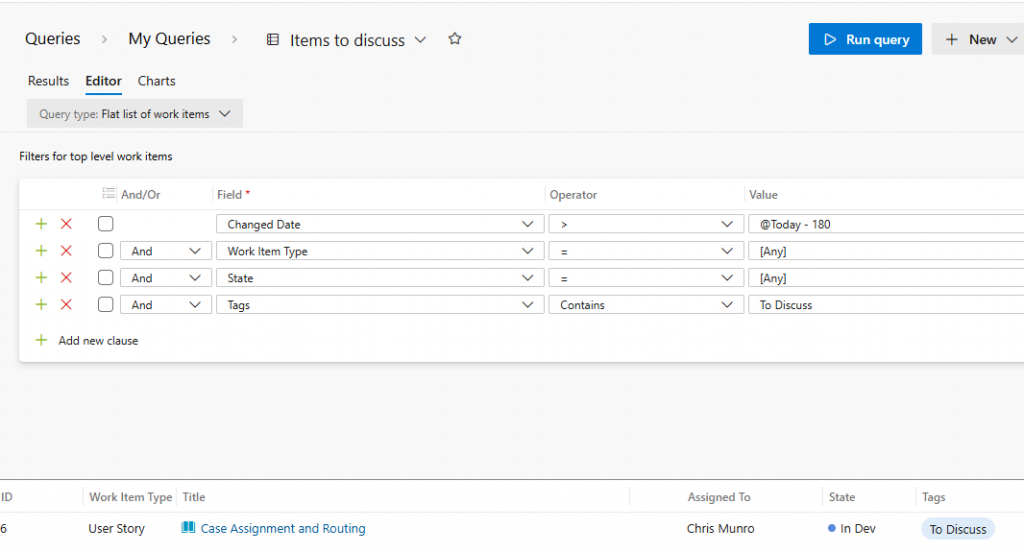
Create a query for these
Power Automate Flow
Create a manually triggered flow
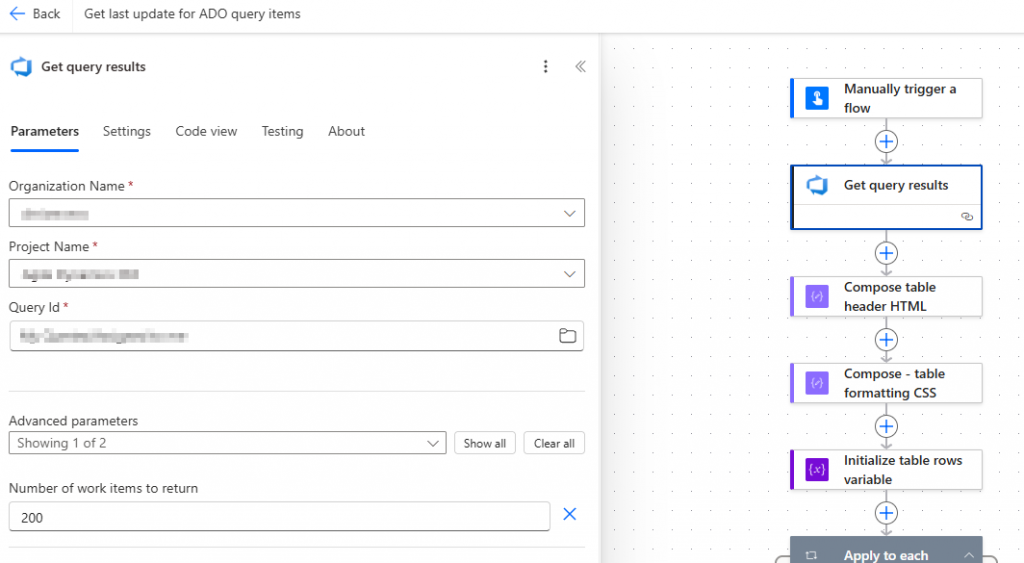
Create two compose statements, they contain HTML and CSS needed for the table that will store the items to be discussed which will be the body of the email we will send. We will create an HTML table manually.
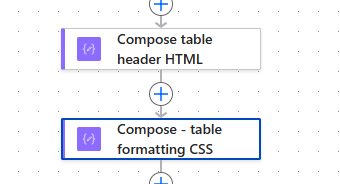
Compose table header HTML, paste below into the compose:
<table>
<thead>
    <tr>
      <th>Ticket</th>
      <th>Latest update</th>
    </tr>
  </thead>
  <tbody>
Compose table formatting CSS, paste below into the compose:
<style>
table {
font-family: arial, sans-serif;
border-collapse: collapse;
width: 100%;
}
td, th {
border: 1px solid #dddddd;
text-align: left;
padding: 8px;
}
</style>
You can change the CSS for something else – there are many websites that will generate CSS to style HTML tables and you can copy and paste into the flow.
We add these to a string variable, which we will append the table rows
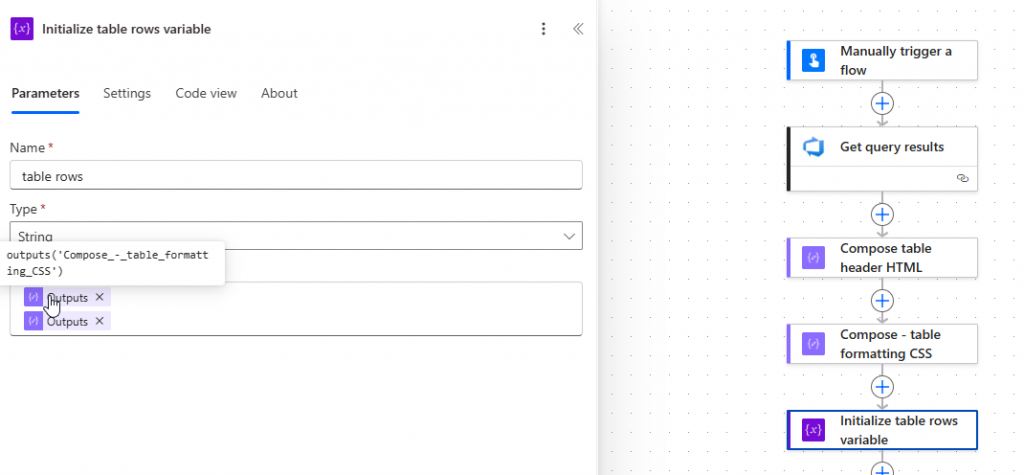
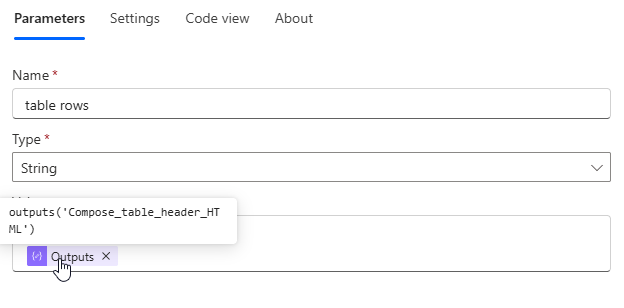
Next we go through the results of the query and add table rows for each item. NB any ADO item fields that you reference, need to be shown as columns in the query in ADO that you are referencing.
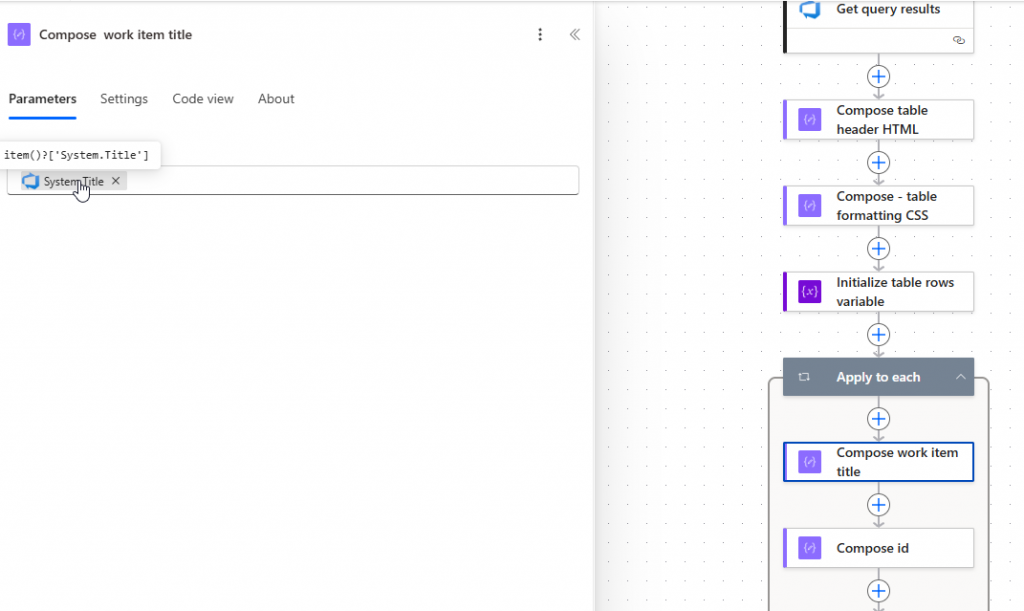
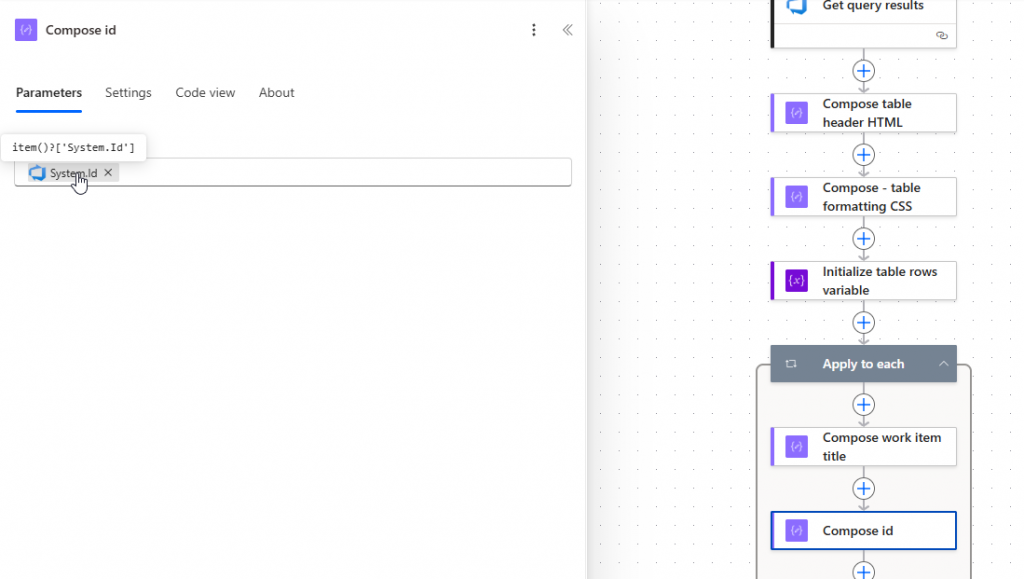
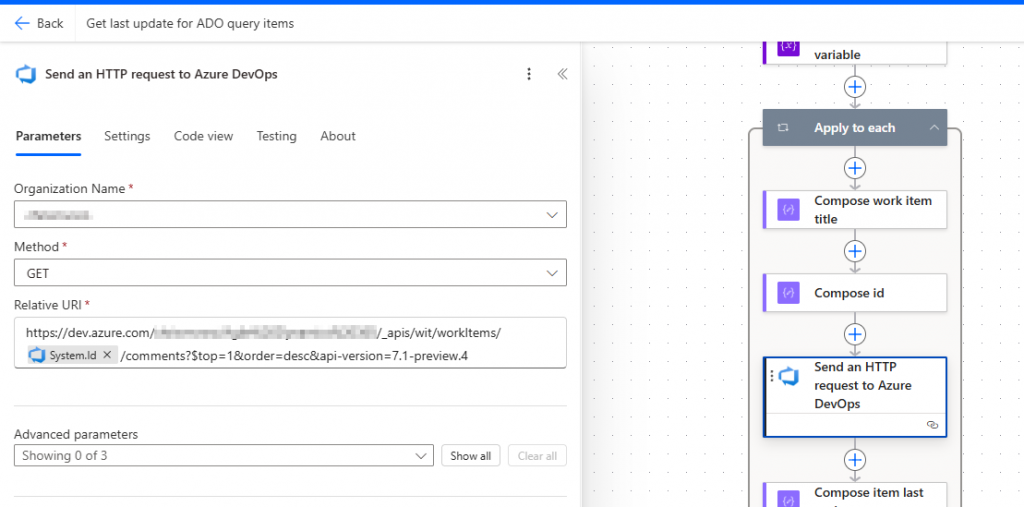
Next we get the latest comment on the item, which can be done via an HTTP request to ADO. We assume there is a comment here – so if you have fresh stories with no initial comment you will need to handle in your flow, or put an initial comment so it is picked up here.
https://dev.azure.com/YourOrg/YourProject/_apis/wit/workItems/@{item()?['System.Id']}/comments?$top=1&order=desc&api-version=7.1-preview.4Use the below HTTP request to ADO to get the latest comments from the user story
We want the first item out of that array, so use a compose item last update:
first(body('Send_an_HTTP_request_to_Azure_DevOps')?['comments'])?['text']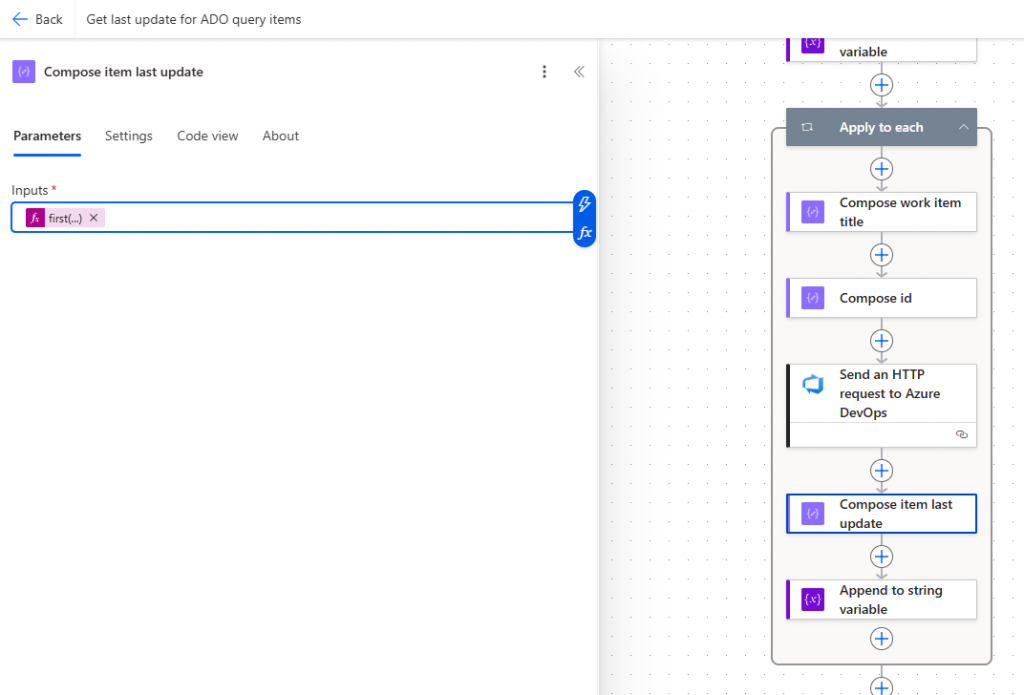
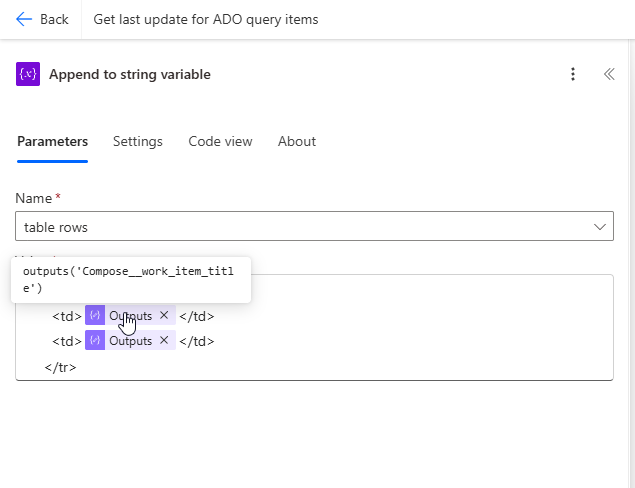
Next create the table row for that story/item. In this post we just put title and latest comment – you can add more to make it work for you.
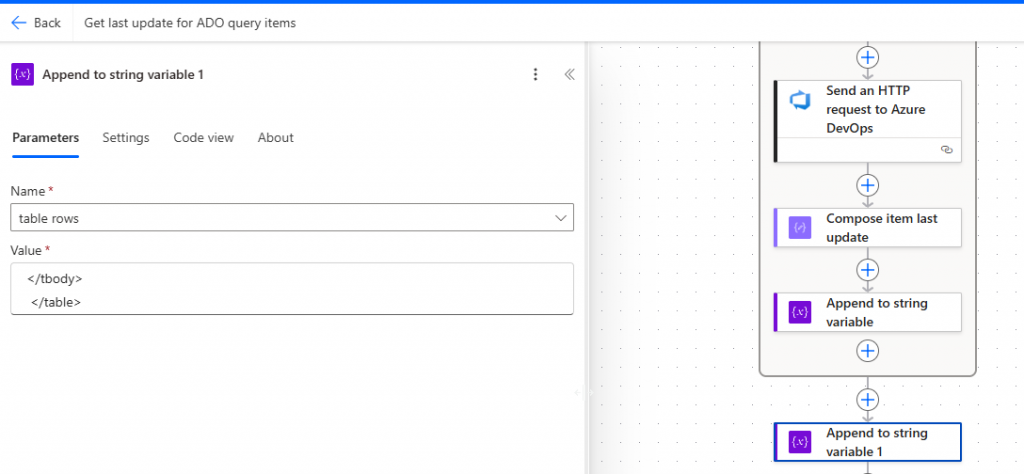
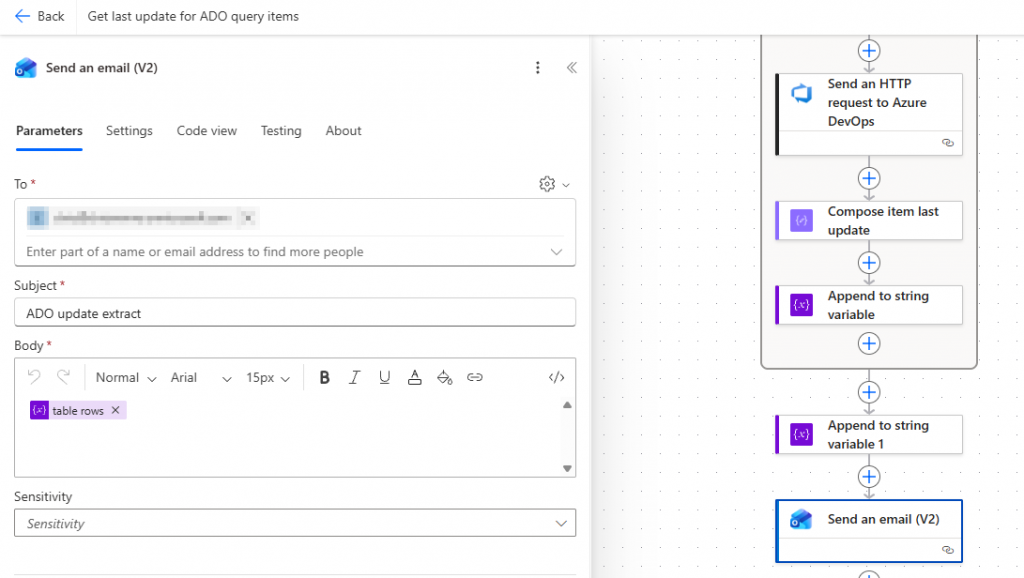
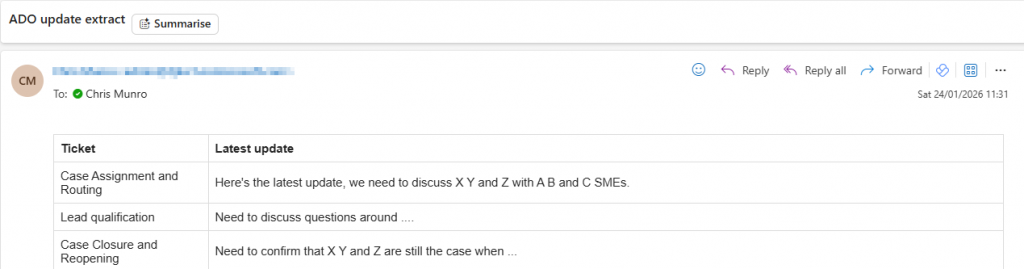
Finally create an email, we put the table rows variable into the body of the email, and it will be rendered via the HTML/CSS.
Then run the flow each time you need a new agenda.